Workbench Overview
The eQual Workbench is a powerful tool designed to simplify the development process within the eQual framework. It provides a graphical interface for creating, editing, and managing components such as models, views, controllers, workflows, and more. By abstracting complex configurations into an intuitive UI, Workbench enables developers to focus on building applications efficiently.
Getting Started
Requirements
To use the Workbench, you need a working instance of eQual (branch dev-2.0). Refer to the Installation Guide for setup instructions.
Installation
Install the Workbench by initializing the core package:
./equal.run --do=core_init_package --package=core
Key Features
Component Creation and Management
The Workbench allows you to create and manage various components of your application, including:
- Models: Define the structure and behavior of your data.
- Views: Design user interfaces for forms, lists, and dashboards.
- Controllers: Manage data flow and application logic.
- Workflows: Define state transitions and business processes.
- Translations: Define multilingual support for your application.
For detailed instructions, see Creating eQual Components.
Visual Editing
The Workbench provides visual editors for:
- Model Fields: Add, edit, and configure fields with type-specific options.
- View Layouts: Drag-and-drop interface for designing forms, lists, and other views.
- Workflows: Graphical editor for defining state transitions.
Learn more in the Model Field Editor, Editing Views and Workflow editor sections.
Translation Support
Easily manage translations for models, views, and controllers to support multiple languages. The Workbench includes tools for translating field labels, error messages, and other UI elements.
See Translation Editor for more details.
UML Viewer/Editor
The UML Viewer/Editor automatically generates diagrams based on your models, allowing you to visualize relationships and dependencies. You can also edit and export these diagrams.
For more information, see UML Viewer/Editor.
Data Initialization
Create and manage initial or demo data for your application. This feature is useful for testing and seeding your database with predefined values.
Refer to Creating Initial/Demo Data for details.
Menu and Route Management
The Workbench provides tools for managing application menus and viewing routes. While route editing is not yet supported, you can view and organize routes through the interface.
See Menu Editor and Route Side Menu for more information.
Creating eQual Components
In workbench, you can find the component creator at the bottom left of every component selector of the app.
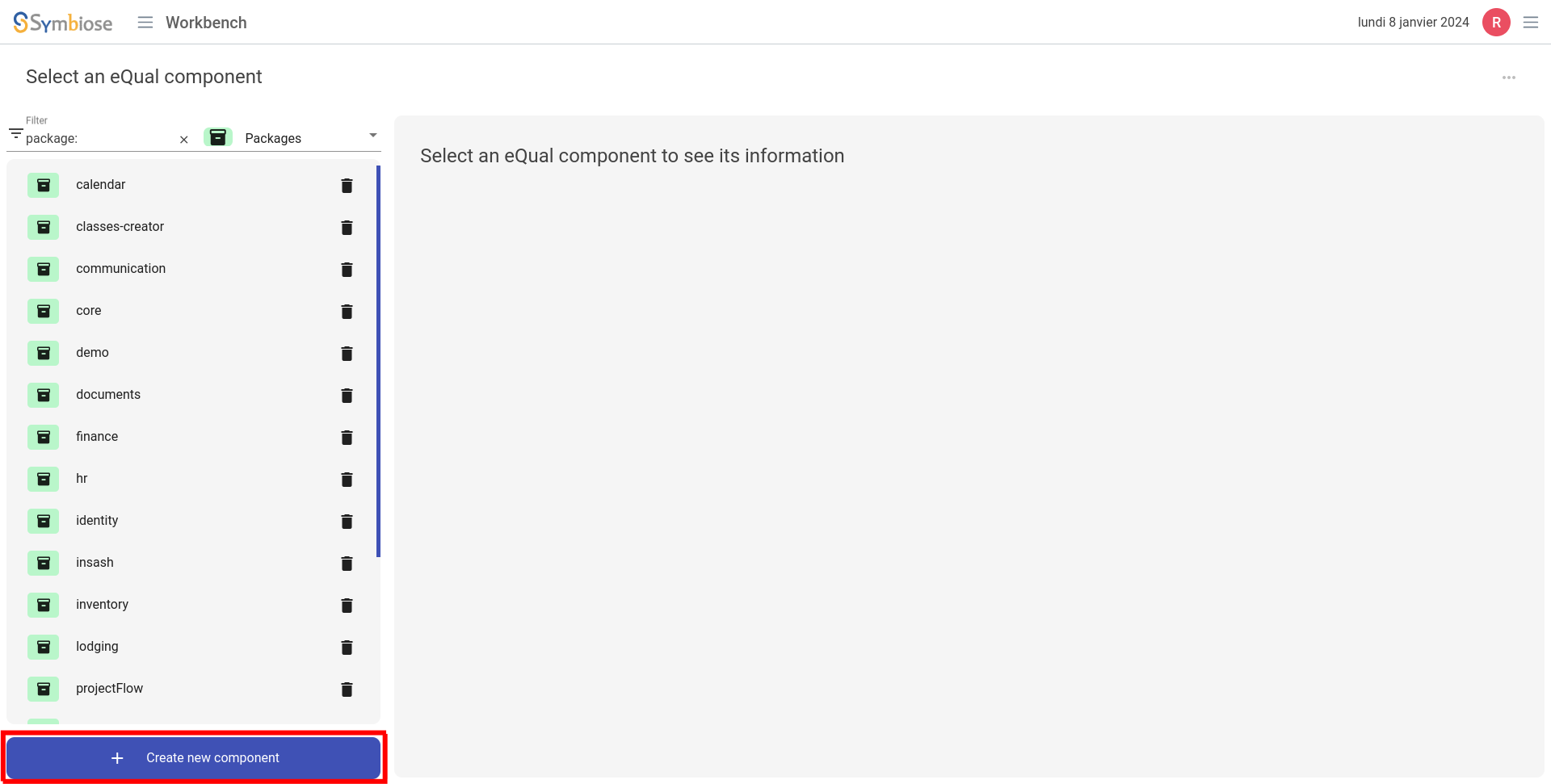
The component creator allows you to create various type of components in eQual using templates to create a working basic component.
The component creator is context aware and will autofill the fields with your current context. You will have to respect the naming convention of each components to be able to create them.
You can find precise components in eQual Workbench by using the base menu to search in all the component of the instance :
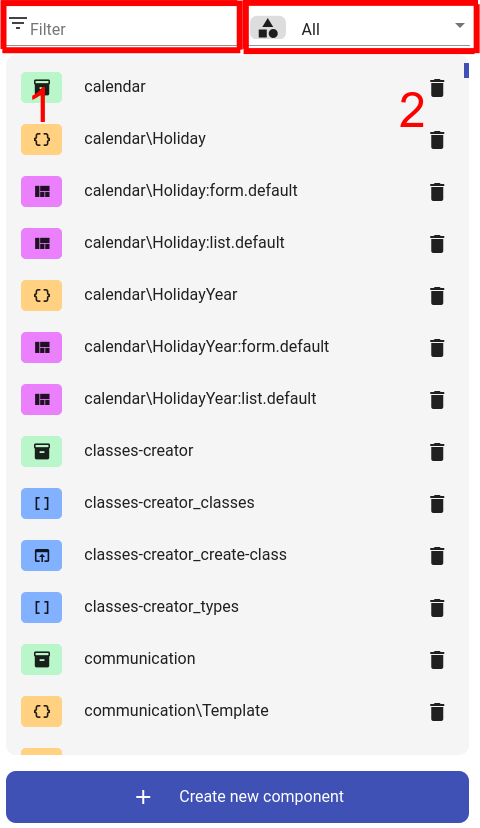
To search for a component, you can use the search bar (1) to filter the component using this syntax :
[component_type]:[package]>[keywords...]
You can also use the drop down menu (2) to select the type (it will change it in the search bar and vice versa).
Model Field Editor
After choosing a component, the right side of the screen will render the model's side menu :
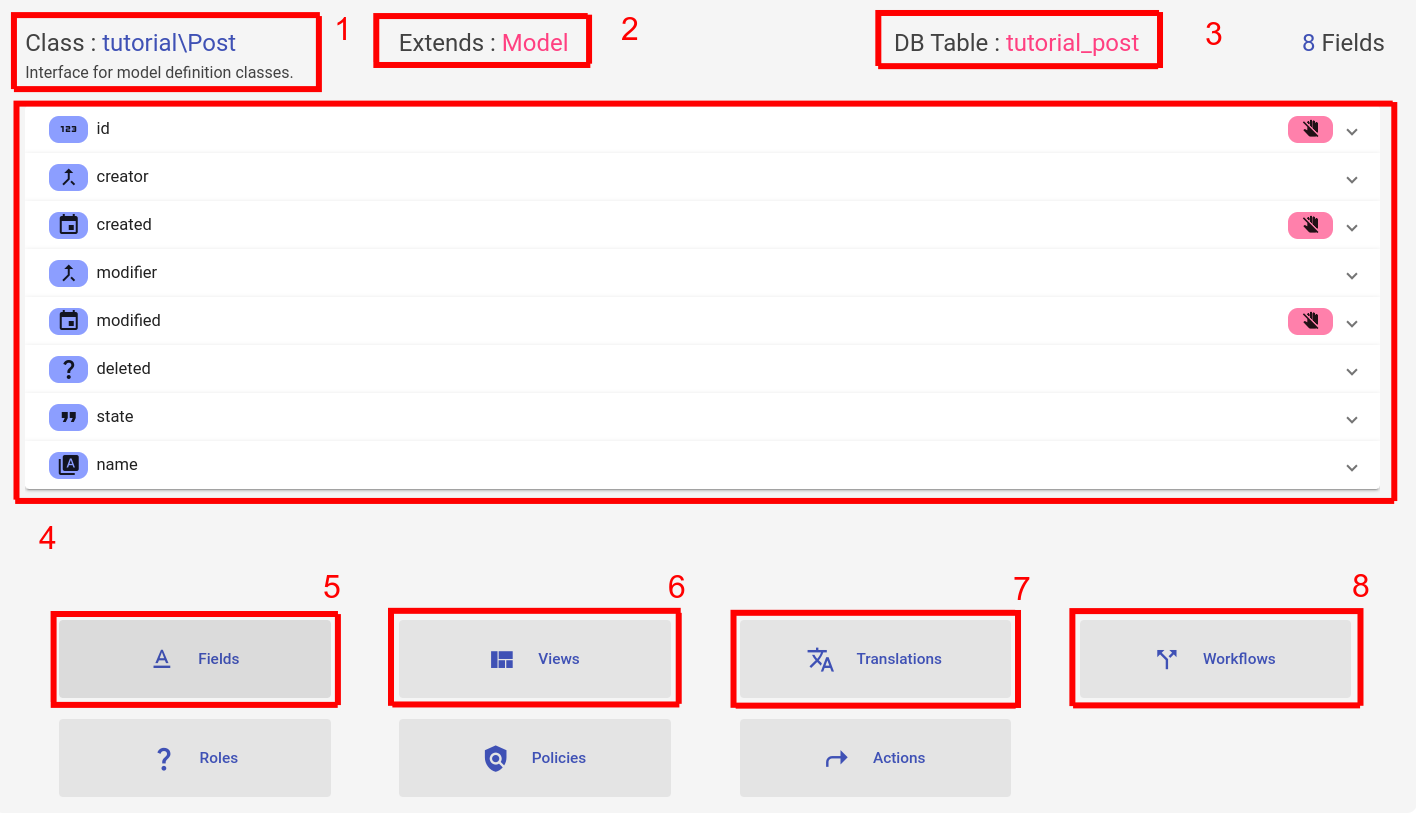
This side menu give a lot of information about the Model :
- Name and description of the Model.
- The parent Model of the current Model (
Modelrefers toequal\orm\Modelthe base Model of eQual). - The table name where object of this Model are or will be stored in the database.
- The list of the fields of the Model (the tabs expand to give more information about the specific field).
Then, there are buttons to interact with the Model :
-
Fields (5) leads to the field editor of the Model see
-
Views (6) leads to the submenu of the views of the Model see
-
Translations (7) leads to the translations editor of the Model see
-
Workflows (8) leads to the workflow editor of the Model see
The other buttons are currently work in progress.
Model Field Edition
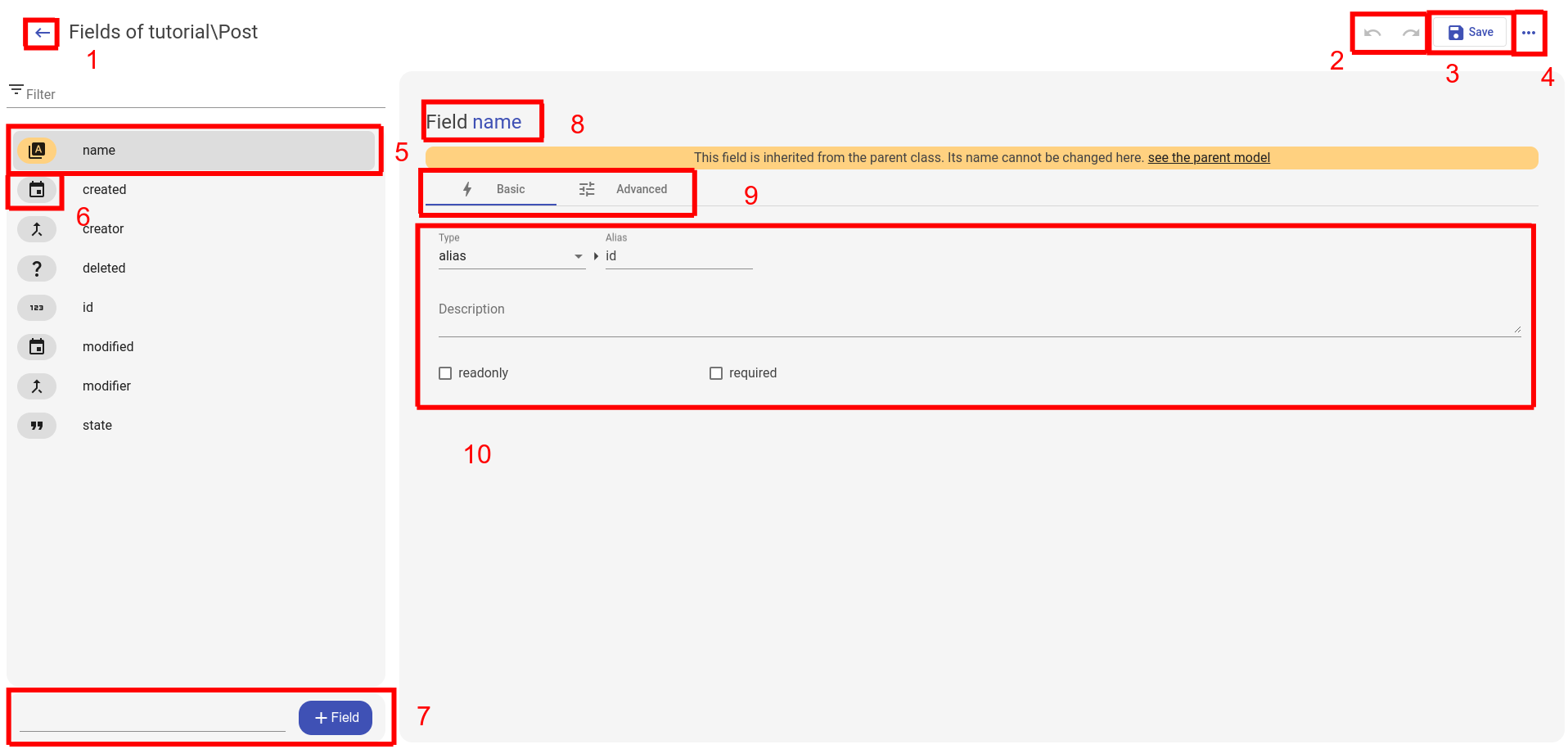
- Back button : allows to go back to the previous context (last page in the state you left it)
- Cancel/Redo : allows to cancel and redo actions as
CTRL+ZandCTRL+Ydo. - Save : allows you sync your changes with the files of the instance of eQual
- More : here are custom actions depending on the tool you are using. Here, you have the ability to show the JSON that will be turned into the PHP code during the save.
On the left of the screen you can see the list of fields (5) of the edited Model.
The icon (6) on the left of the name gives two information about the field :
- The icon represent the type of the field :
| Icon | type | Icon | type | Icon | type |
|---|---|---|---|---|---|
| string | date | binary | |||
| integer | datetime | many2many | |||
| array | time | alias | |||
| float | text | one2many | |||
| boolean | many2one | computed |
- The background color represents the state of the field :
- Gray is inherited from
equal\orm\Model. It can't be edited or deleted because it is required by eQual to manage it in DB - Yellow is inherited. You can't delete an inherited field.
- Green is Overridden. It's an inherited field that has been edited in this Model. It cannot be deleted but can be reset to its parent value
- Blue is basic field, neither inherited, neither overridden.
- Gray is inherited from
As in the component menu, the field creator (7) is located at the bottom left of the screen. If you do not fill the name input, it will give an arbitrary name to the field.
View Side Menu
The view side menu give information about the selected view and access to its edition.
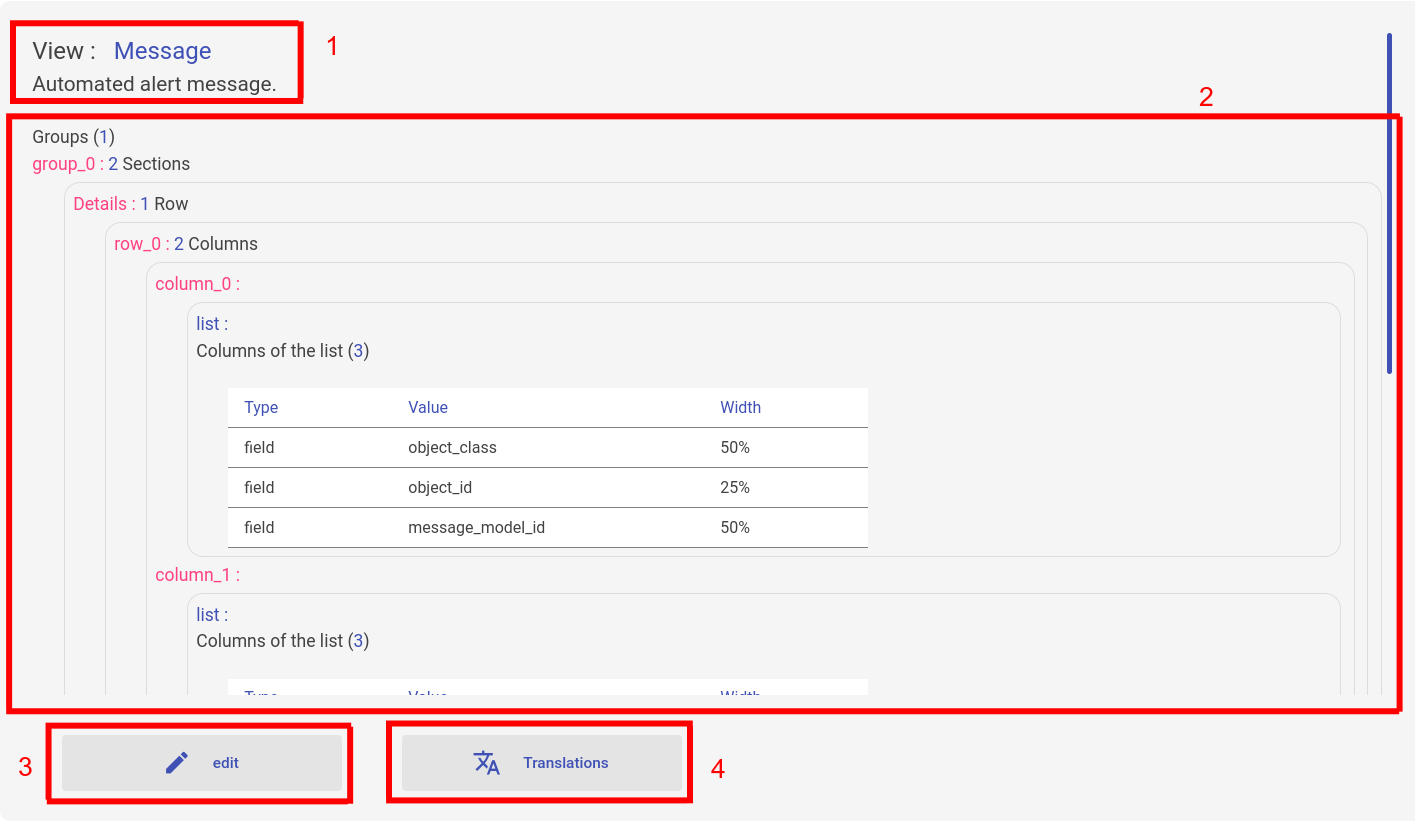
- Name and the description (1) of the view
- Information (2) about the layout of the view
- Leads to the view editor (3)see
- Leads to the translation (4) of the Model/controller associated to the view see
Editing Views
View are huge JSON file that are hard to read. Workbench give the user a simpler way to edit the view using an interface that mimic the result of the view in eQualUI

In the editor, view are segmented in 5 categories (2). The content of these part may vary depending on the type of view you are editing.
1. Layout : This is the part that vary the most. The layout is the part of the view that will display the object of a Model.
2. Header : Refers to the header part of a view. You can edit header actions and selection actions in this tab.
3. Actions : You can edit the custom actions of the view here
4. Routes : You can edit the routes of the contextual menu of the view here
5. Advanced : You can edit all the other properties of the view here such as the domain, the collect controller, the operations, ...
Form/Search View Layout
When you are editing the layout of a form or a search view, the editor will create a render that looks like the render of eQual UI.
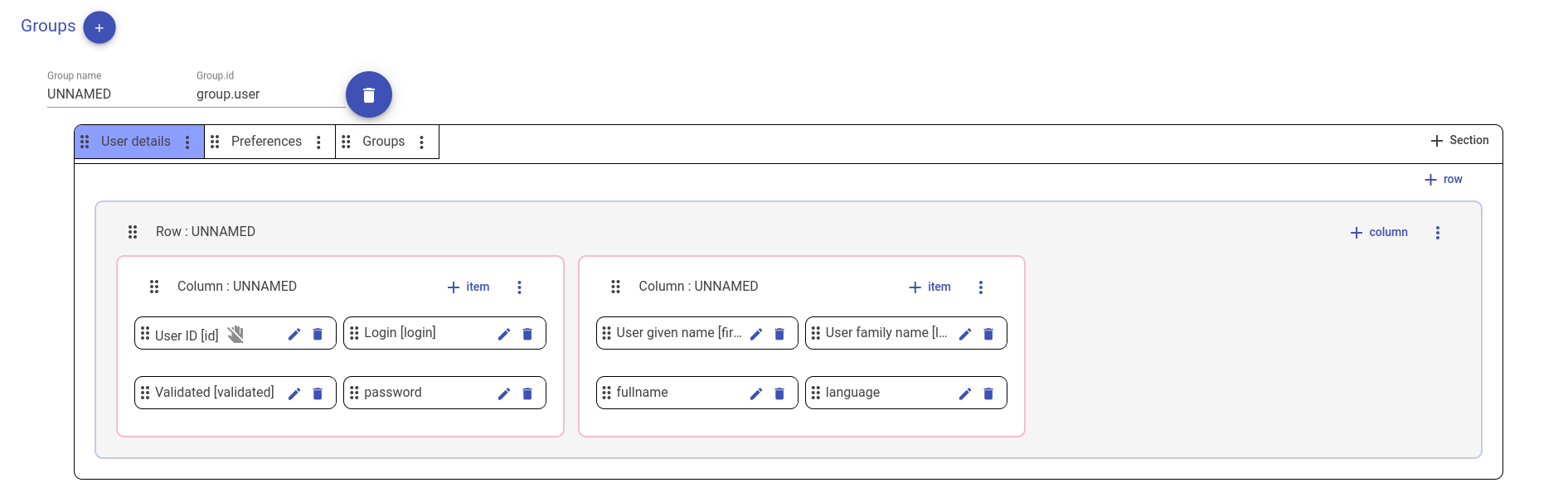
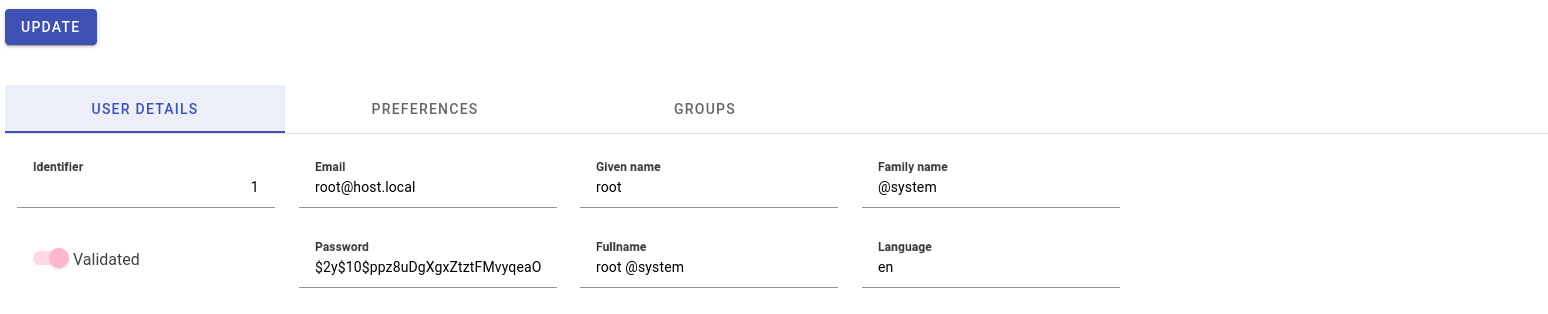
You can edit the layout visually using drag and drop.
List View Layout
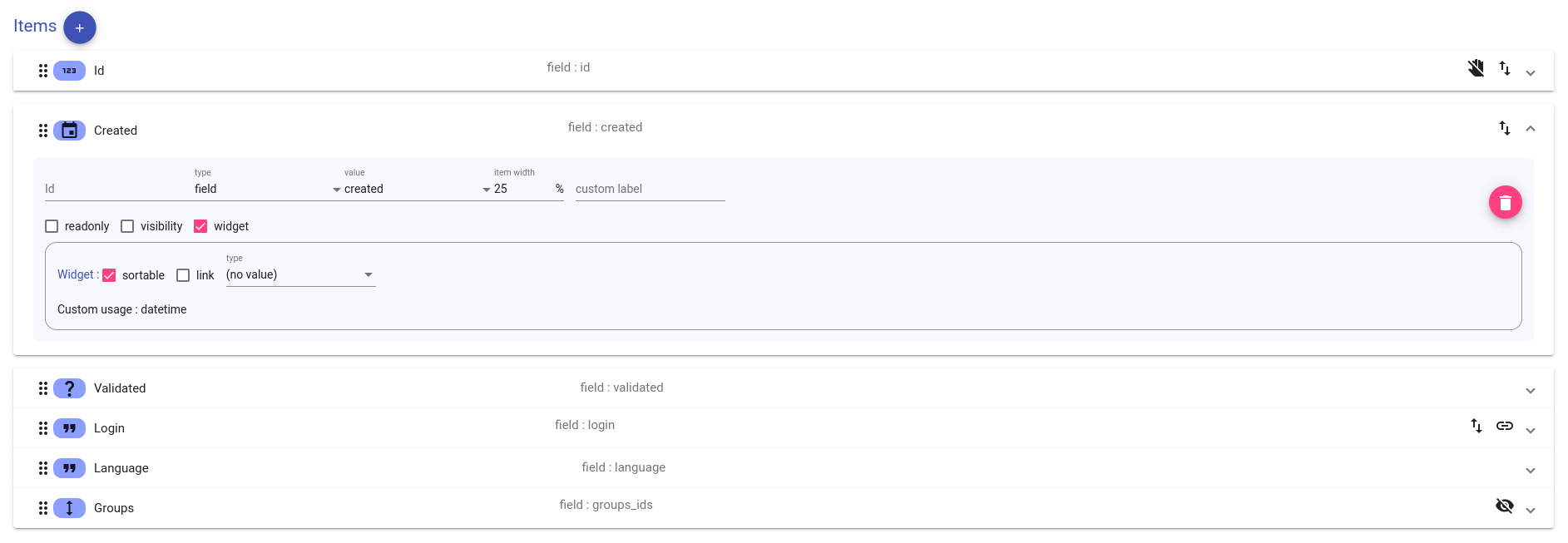
The view layout is represented as a list of column in the editor. You can edit the column and change their order by dragging and dropping them.
Controller Side Menu
The controller side menu give information about the selected controller using the announcer of the controller, allows the user to call the controller for testing purpose and give access to parameter and return value edition and controller traduction edition.
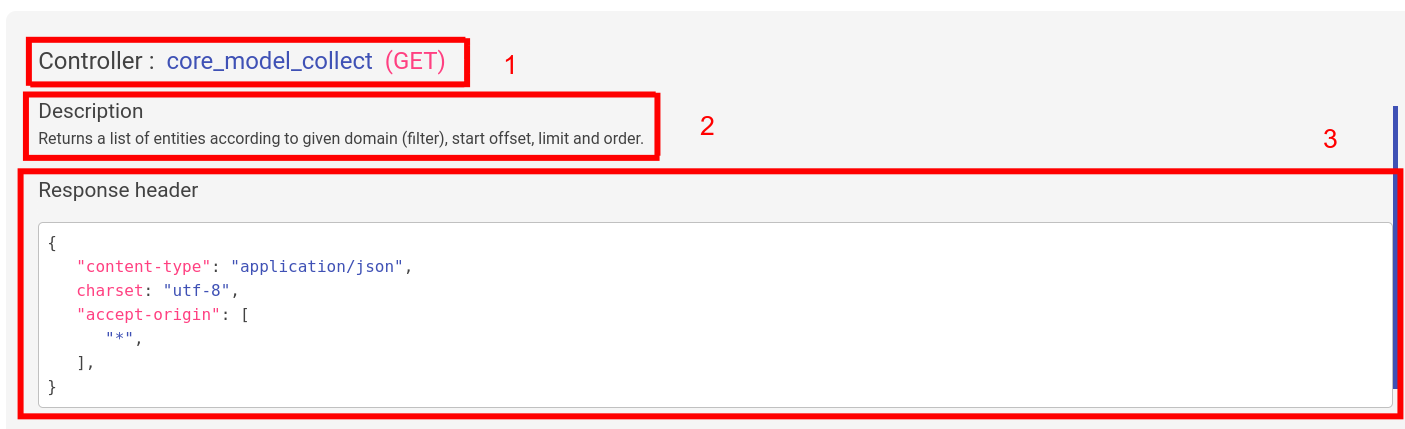
1. Name and type (GET = data controller or DO = action controller) of the controller.
2. Description of the controller.
3. Response header : Meta data about the response you will get by calling this controller.
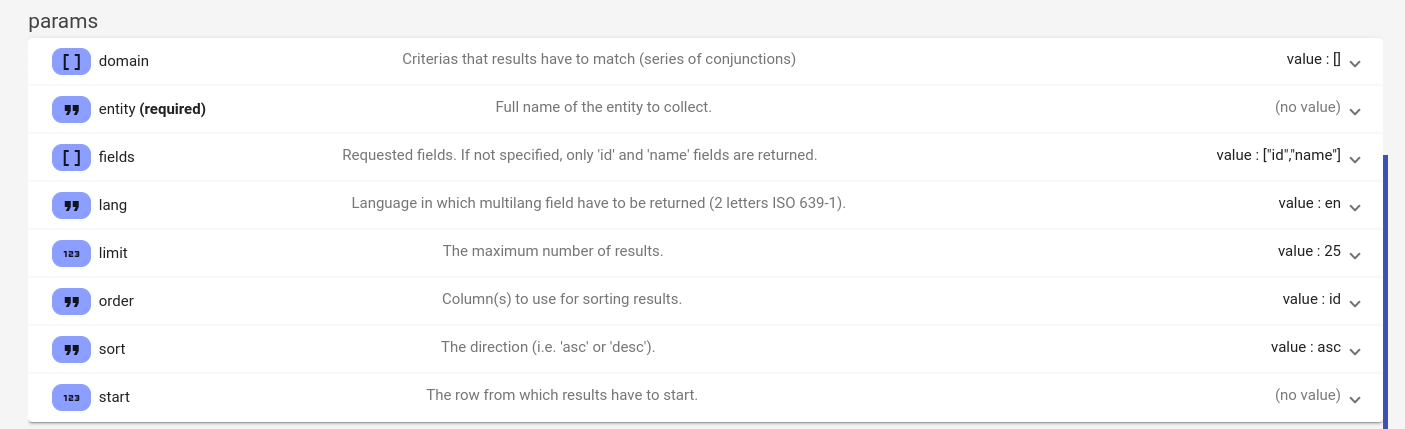
This list represents input parameters of the controller and can be filled to call the controller in workbench or generate cli command and http request to call the controller.
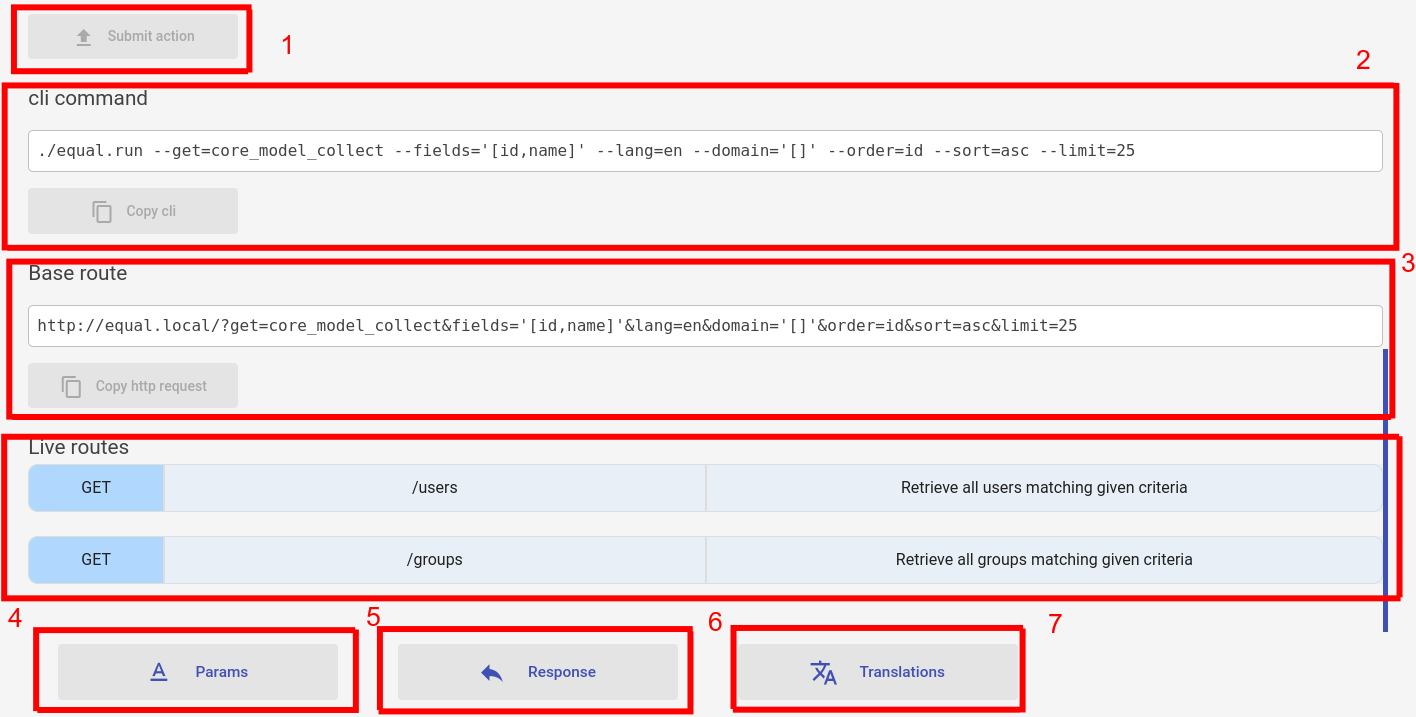
1. Allows you to call the controller in workbench and see its response if all the required input parameter have a value.
2. Allows you to copy the cli command to call the controller with the parameter you entered in workbench.
3. Allows you to copy the http request to call the controller with the parameter you entered in workbench.
4. Give you all the custom routes enabled in the instance that uses this controller.
5. Leads to the input parameters editor see
6. Leads to the response editor see
7. Leads to the translation editor of the controller see
Controller Editor
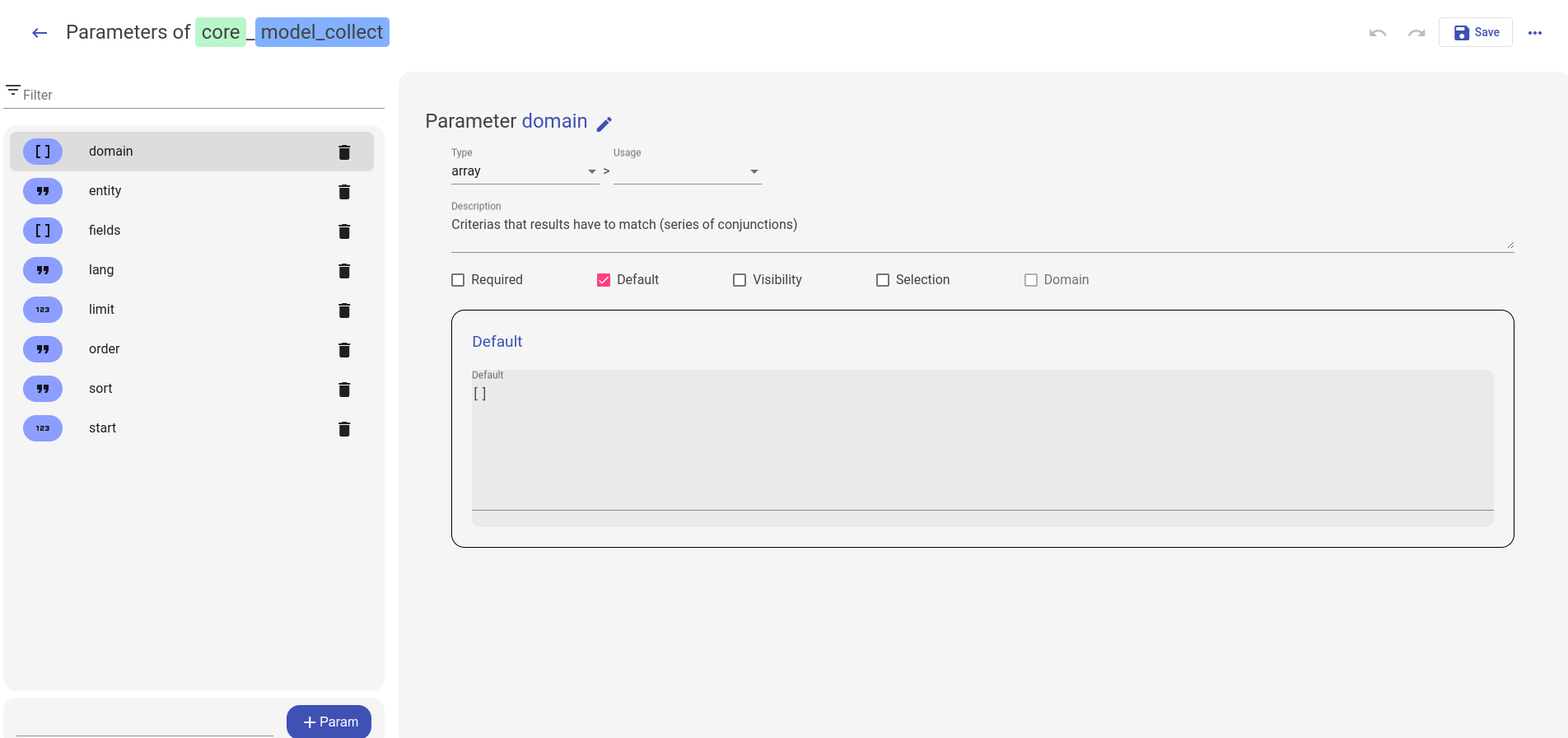
The controller parameters editor works exactly like the model field editor without the inheritance handling and the advance panel.
Editing Controller Responses
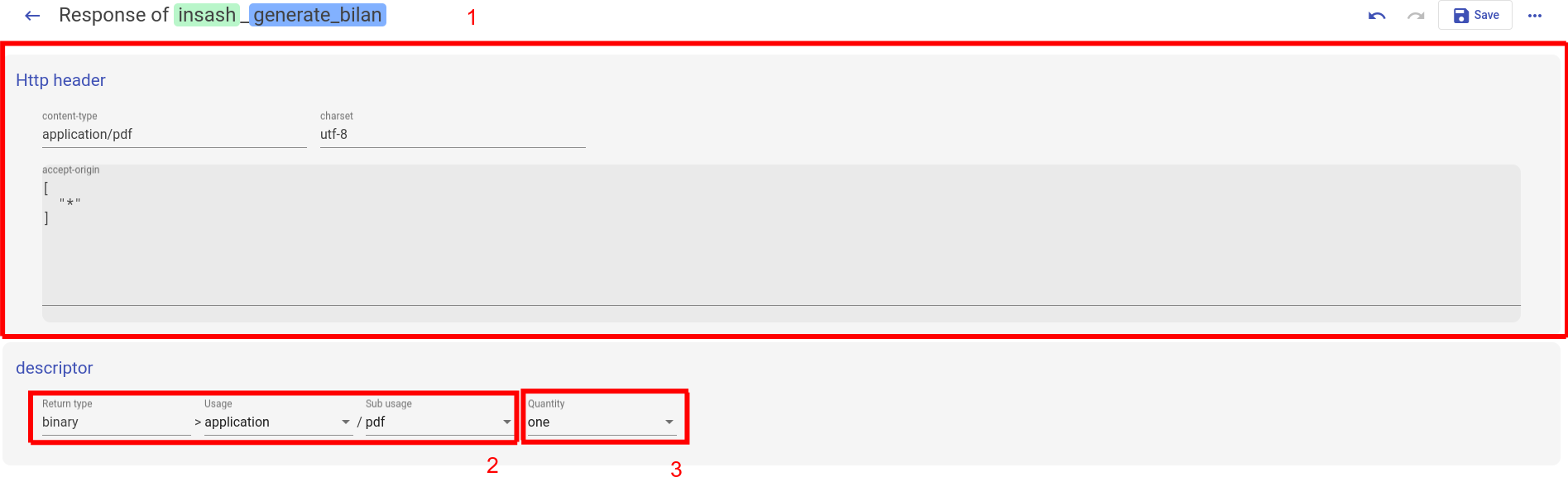
In the return editor, you can modify the http response header (1), and the eQual type of the content of the body (2).
Http response header indicates in which format the data is sent, the descriptor is an indication about the type of the content.
For example an array can be sent in XML format : content-type : application/XML and descriptor : array But can also be sent in json format : content-type : application/json and descriptor : array.
You can also precise the quantity (one or many) of variable you send (3)
In addition of the "classic" types of eQual you can indicate an "entity" type that allow you to reference an eQual Model, or a data of type "any" : type "any" can be precise as a composite structure of eQual types if possible

Menu Side Menu
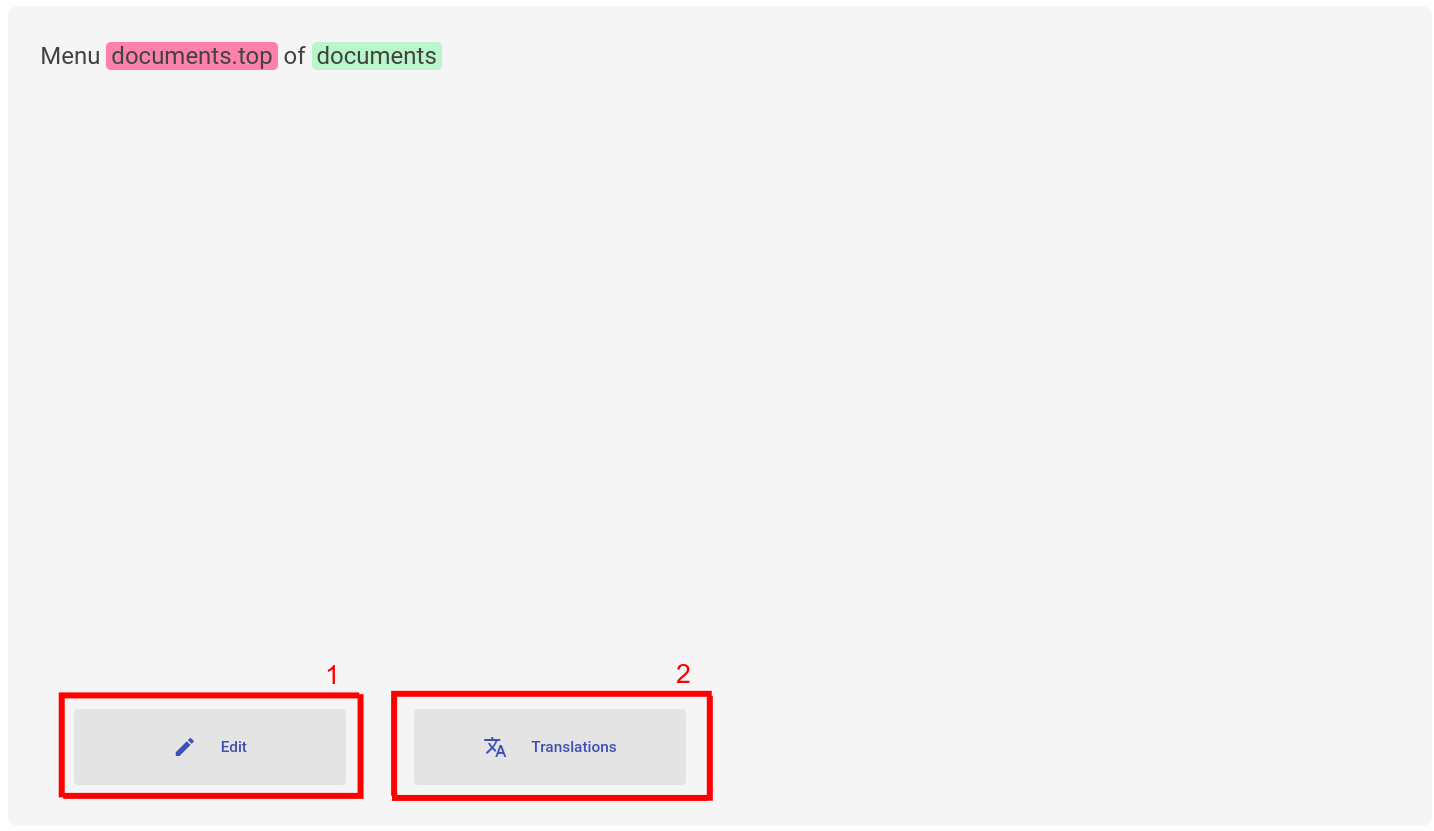
The menu side menu is in work in progress and only gives access to the menu editor (1) and menu traduction editor (2)
Edit Menus
The menu editor allows you to create/edit/delete menu items whilst having a preview of the final result.
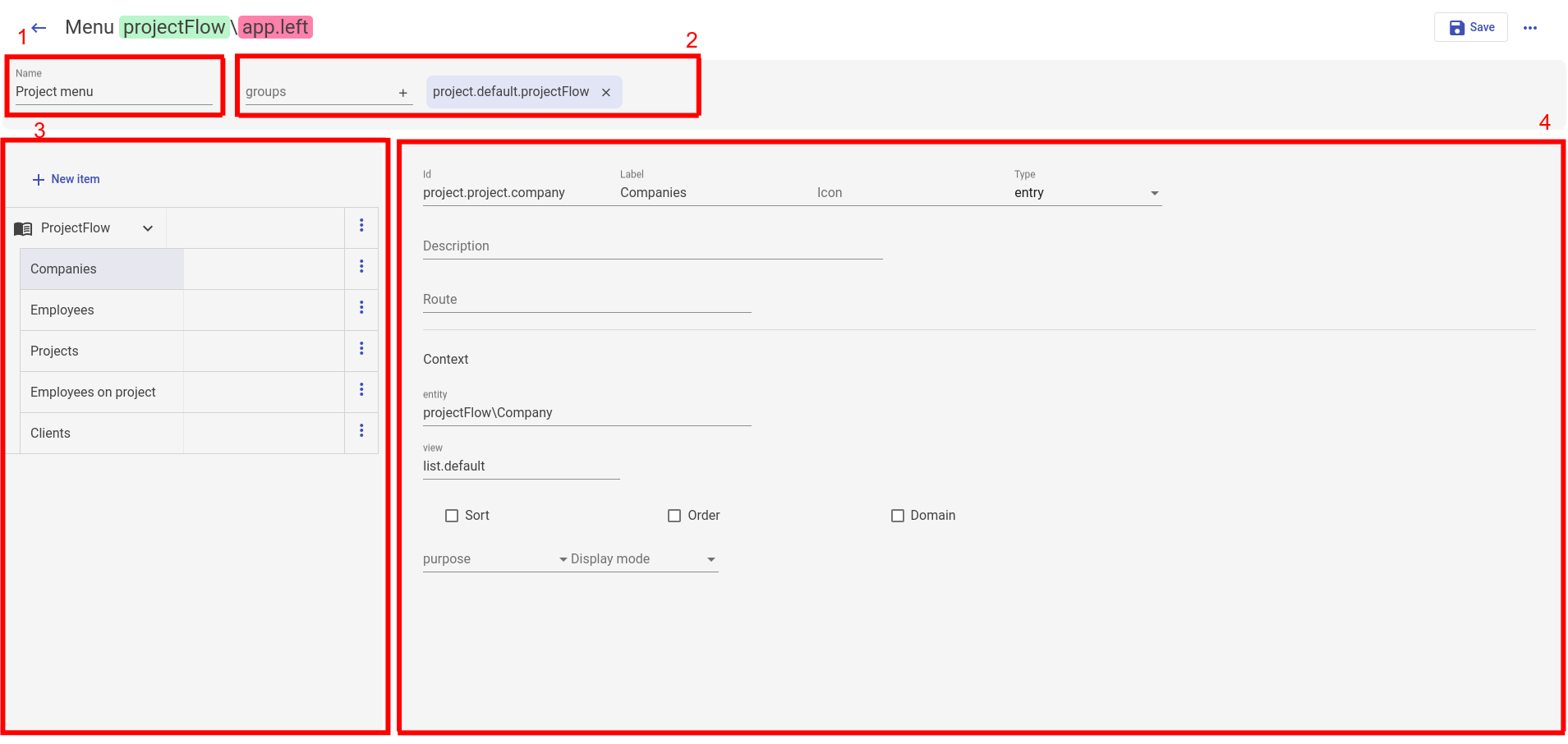
1. Name of the view for display purpose only (unrelated to its id which is attached to its filename).
2. Manage access to the menu by group
3. Preview and item selector (allow sorting by drag and drop on the same level)
4. Edition of the properties of the selected menu item
All the editable properties of the view in workbench are properties findable in the original menu structure.
Package Side Menu
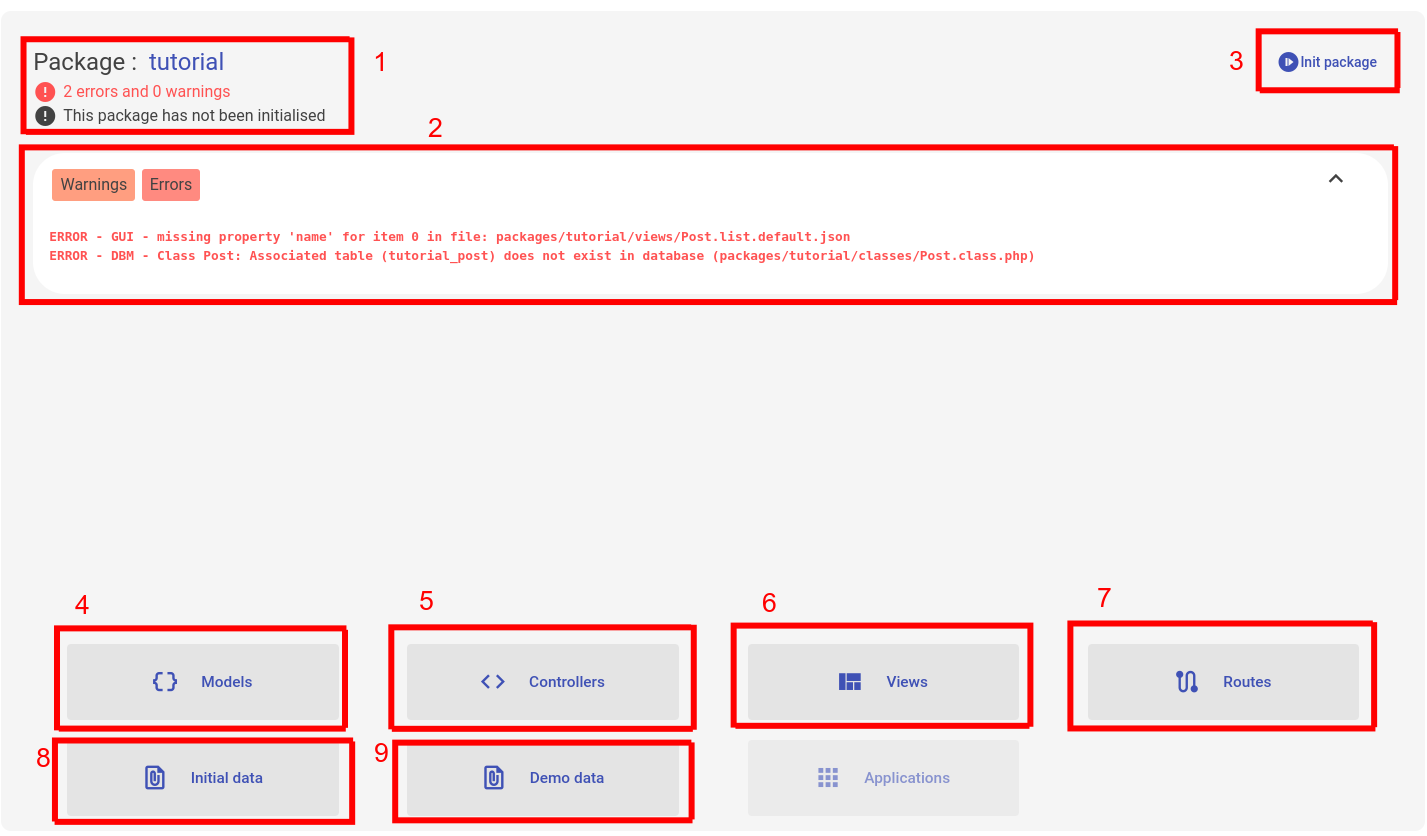
1. Information about the package : name, package_consistency reports and if the package has been initialized on the eQual instance.
2. Details about the package_consistency reports.
3. Button to open the package initializer dialog.
4. Leads to models submenu
5. Leads to controllers submenu
6. Leads to views submenu
7. Leads to routes submenu
8. Leads to init data editor
9. Leads to demo data editor
Demo and initial data are the same structure but they are not saved at the same place to allow the developer to choose which he wants to import if he wants to import them.
Create initial/demo Data
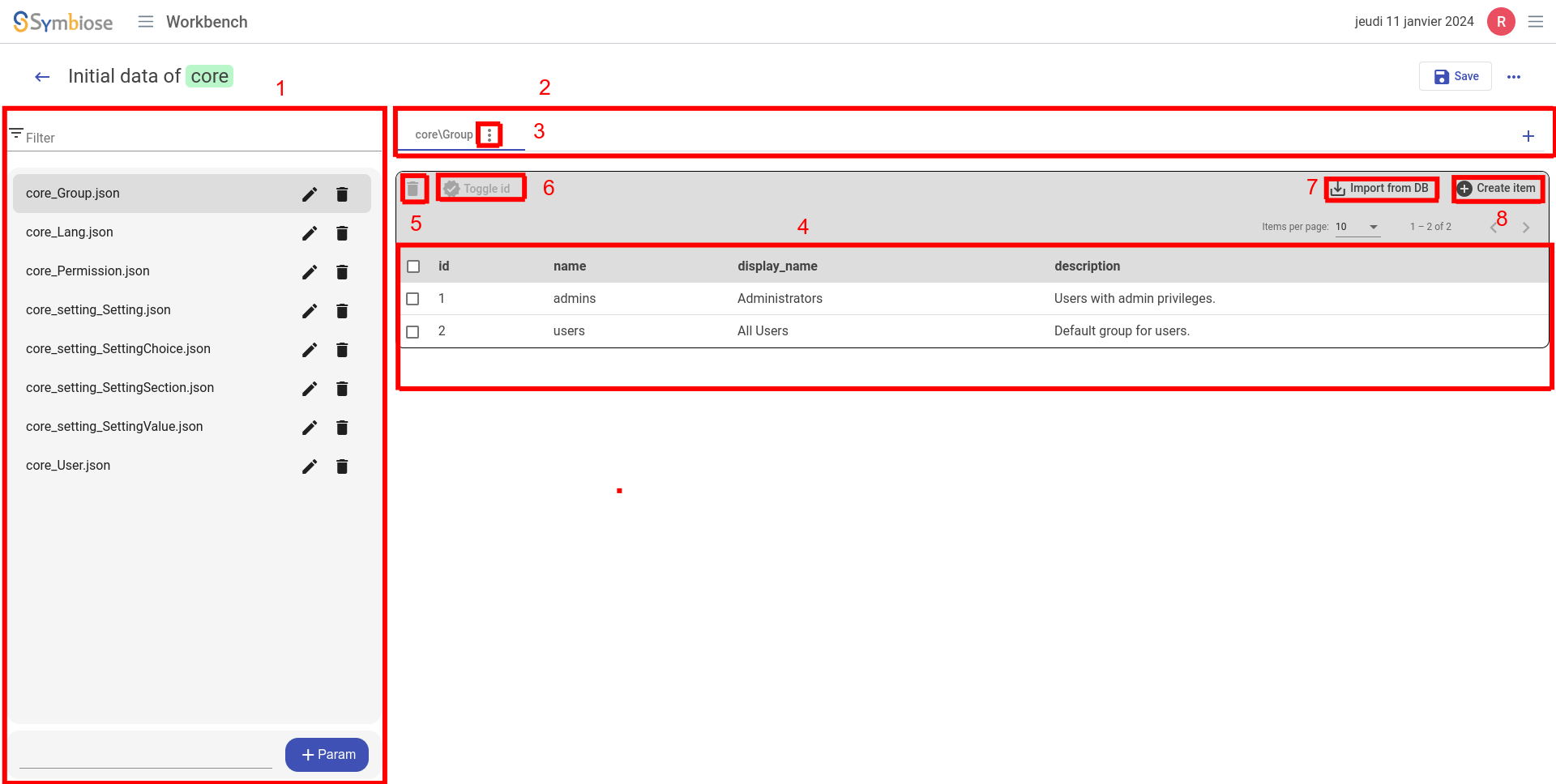
1. This is the list of the init/demo files for the given package, you can navigate through them using the side pane.
2. You can select the entity you want to modify its entries in a given file using the tab selector.
3. This button allows you to interact with the Model properties, mostly delete the model's entry or select which languages you want to create the data for the model (uses also ISO 639-1).
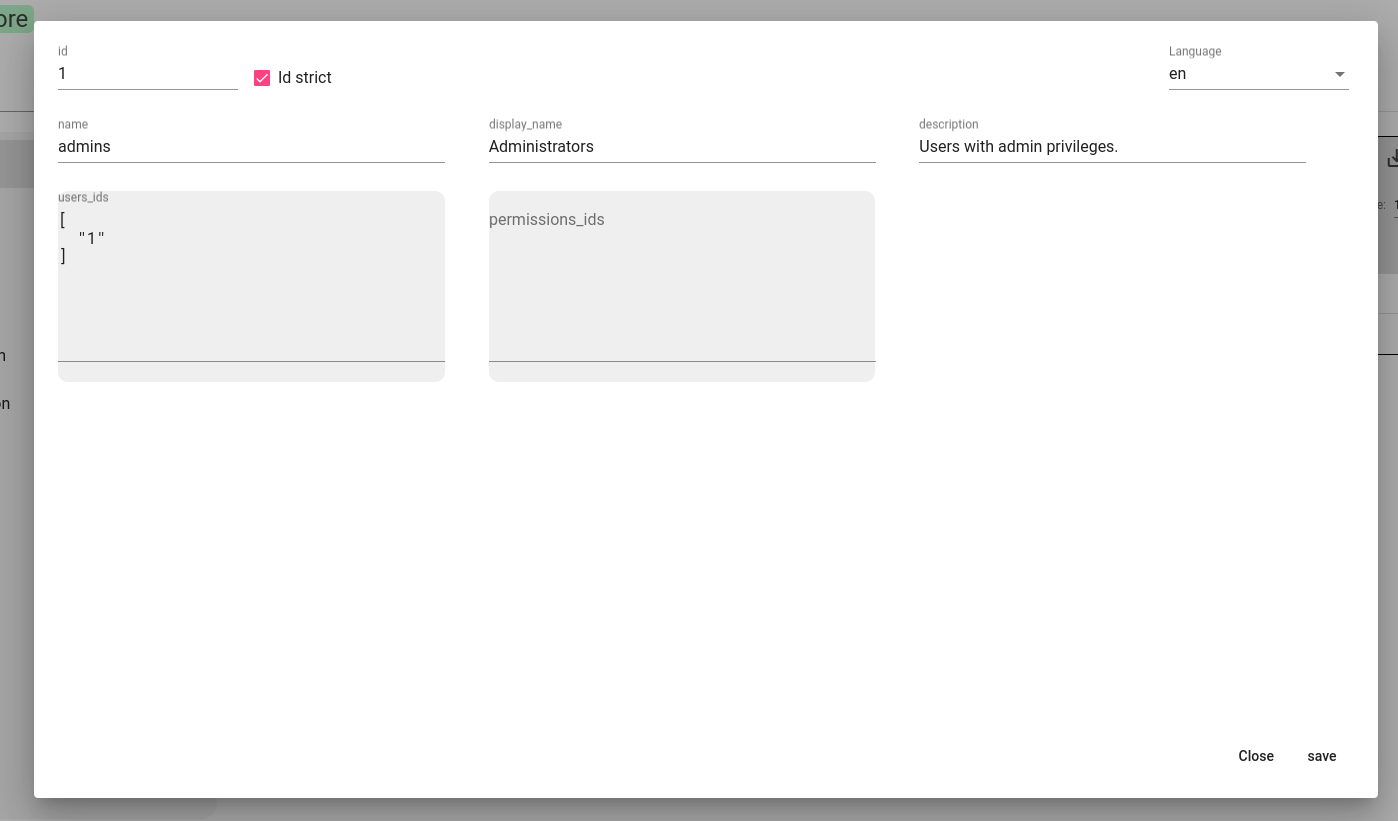
4. You can visualize the data entry as a list here (uses the list.default view of the model, make sure you created it trying to display the properties before creating data). By clicking on an entry, you can edit its values (fields that are not multilang are only editable in `en``) :
5. To delete entry you need to select the desired items then click on this button
6. **id strict and toggle id button**s allows you to tell to the editor if the entry is bound to a specific id or not. You may uses bound id to create relations between items or if a component uses the id in a domain.
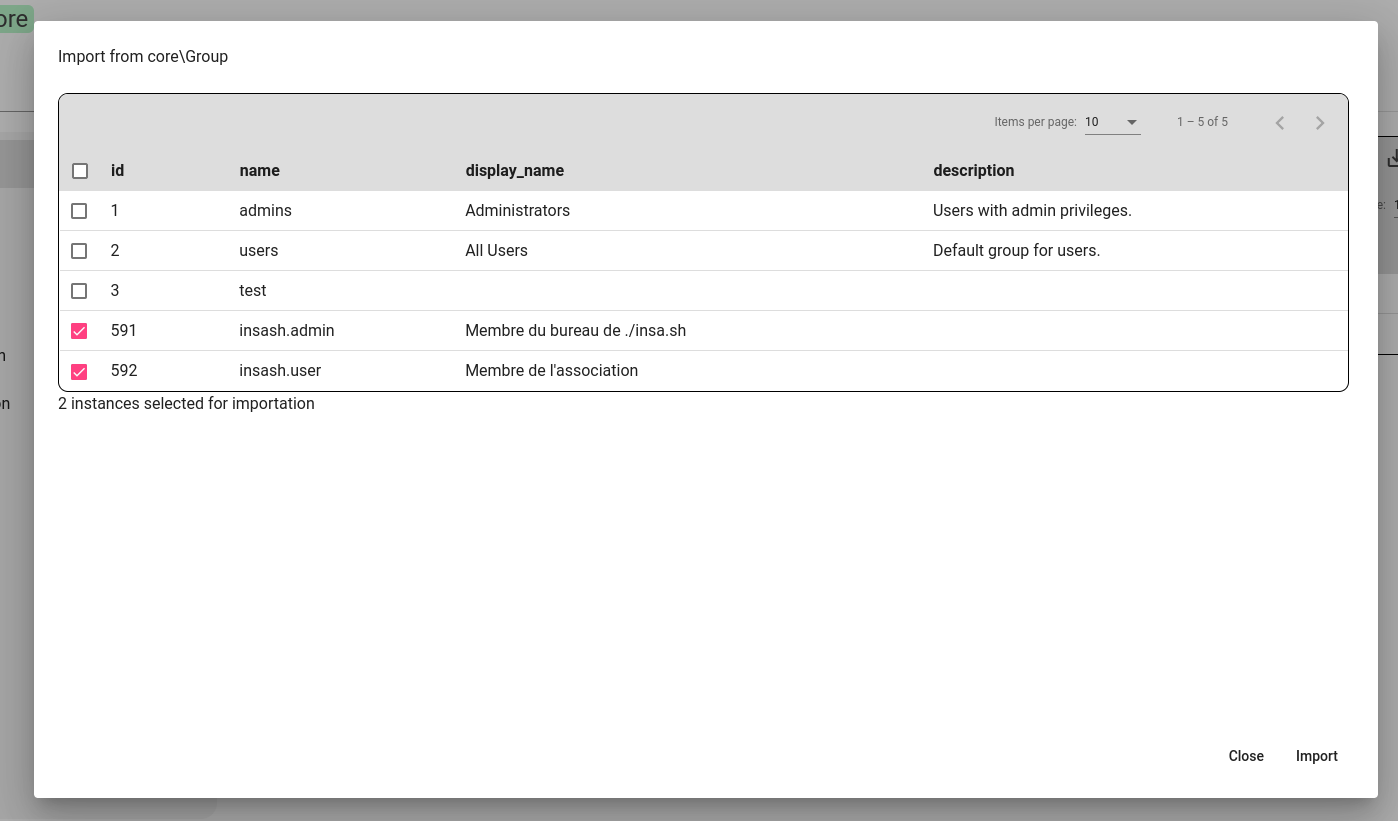
7. The editor allows you to import initial data from the data of the eQual database. By clicking on this button, Workbench will fetch all the object of the Model and convert the one you select to initial/demo data :
8. You can create initial data entries by hand using this button. this will open the edition menu automatically on the new item.
Translation Editor

In the translation editor, you can select or create a lang to translate your entity (1).
The format for the lang is ISO 639-1, either two lower case letter (representing a language) like fr or en or two lower case letter (representing a language) and two upper case letter (representing a country) separated by an underscore like fr_BE or es_EC.
Translating en entity means to translate its fields (or parameters name for controller), but also its views and error (due to constraints in models or exception in controllers)
Model translation
Translation applies to models. However, it also applies to controllers using params as their fields.
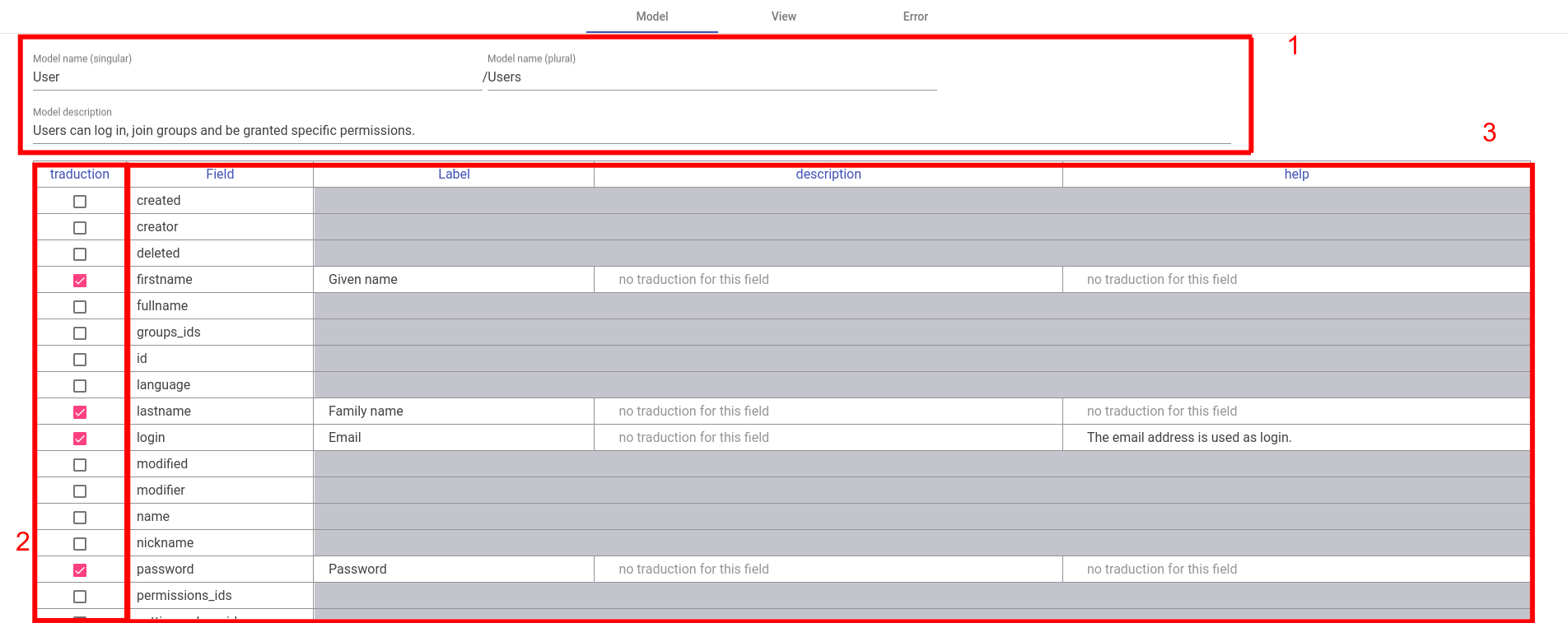
You can translate the name and description (1) of the model and add plural variation to be used in the view render motor of eQualUI .
Translating fields (3), will allow your apps to display the name differently in the views depending on the lang of the user that visualizes it. It also override the label argument of a view field. You can choose whether or not a field is translated or not via check boxes (2).
View translation
There is not much to translate in views because the names of fields are already translated in Model translation. Here, you will be able to translate groups, sections, row, column and label fields names.
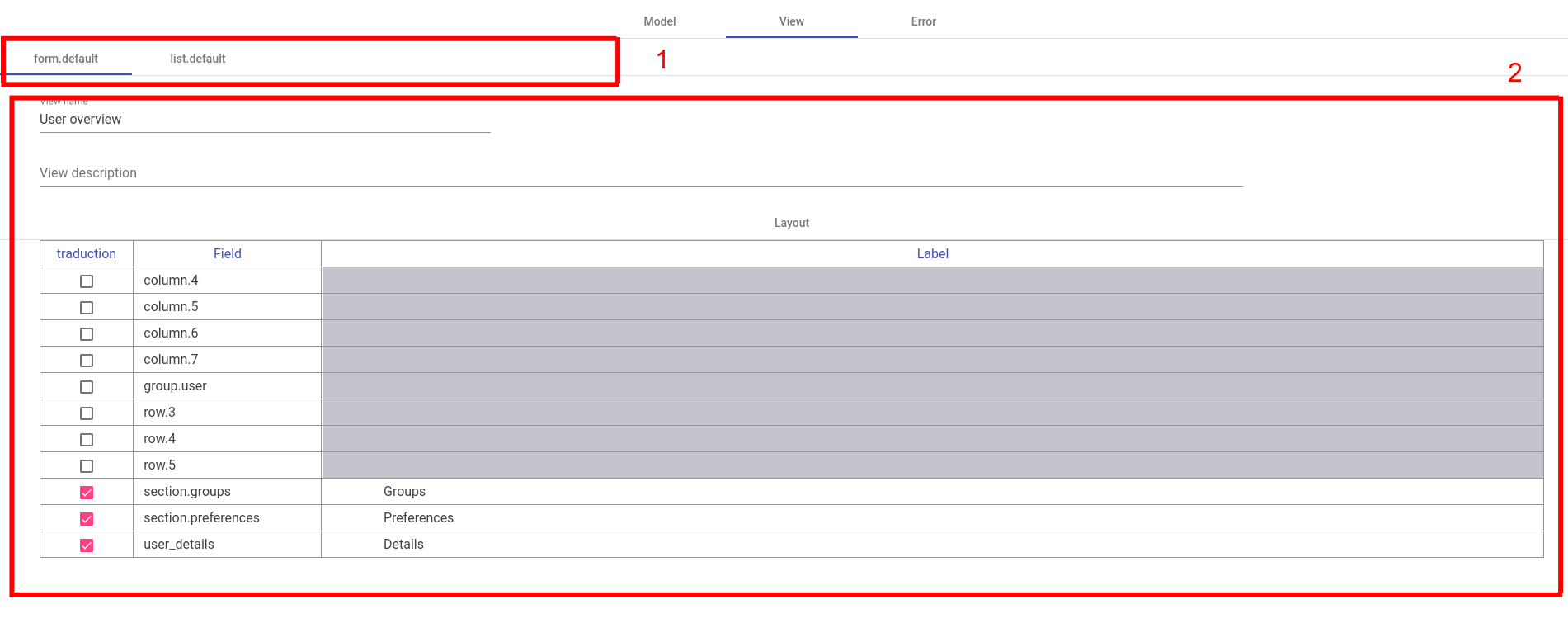
You can select which view to translate with the tab selector (1), then you can **translate the view (2)**the same way you translate the model.
Error translation
Error translation works differently. You need to state for each field and error type the appropriate message.
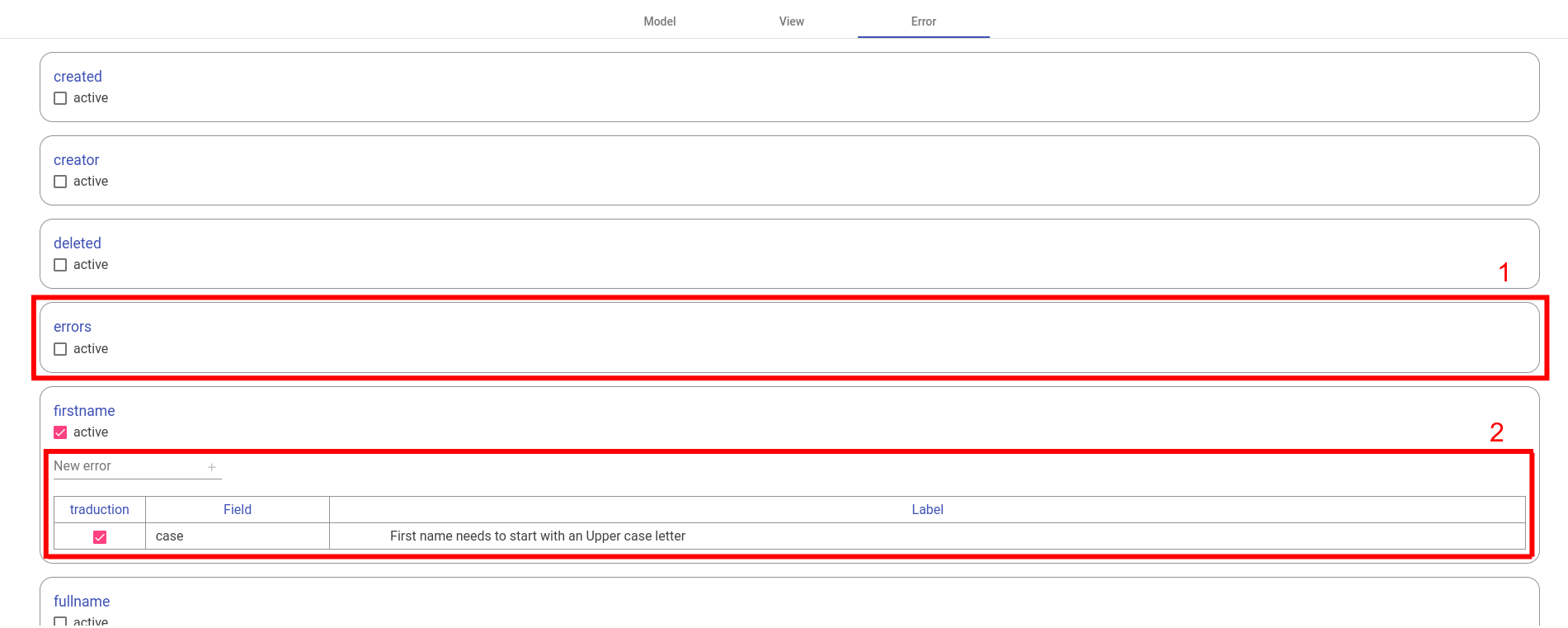
First you can choose if a field has error to translate via a checkbox (1)
Then, you can add error type to the field (2) and translate them.
Workflow Editor
By using the button workflow in the Model side menu, You can access the workflow editor :
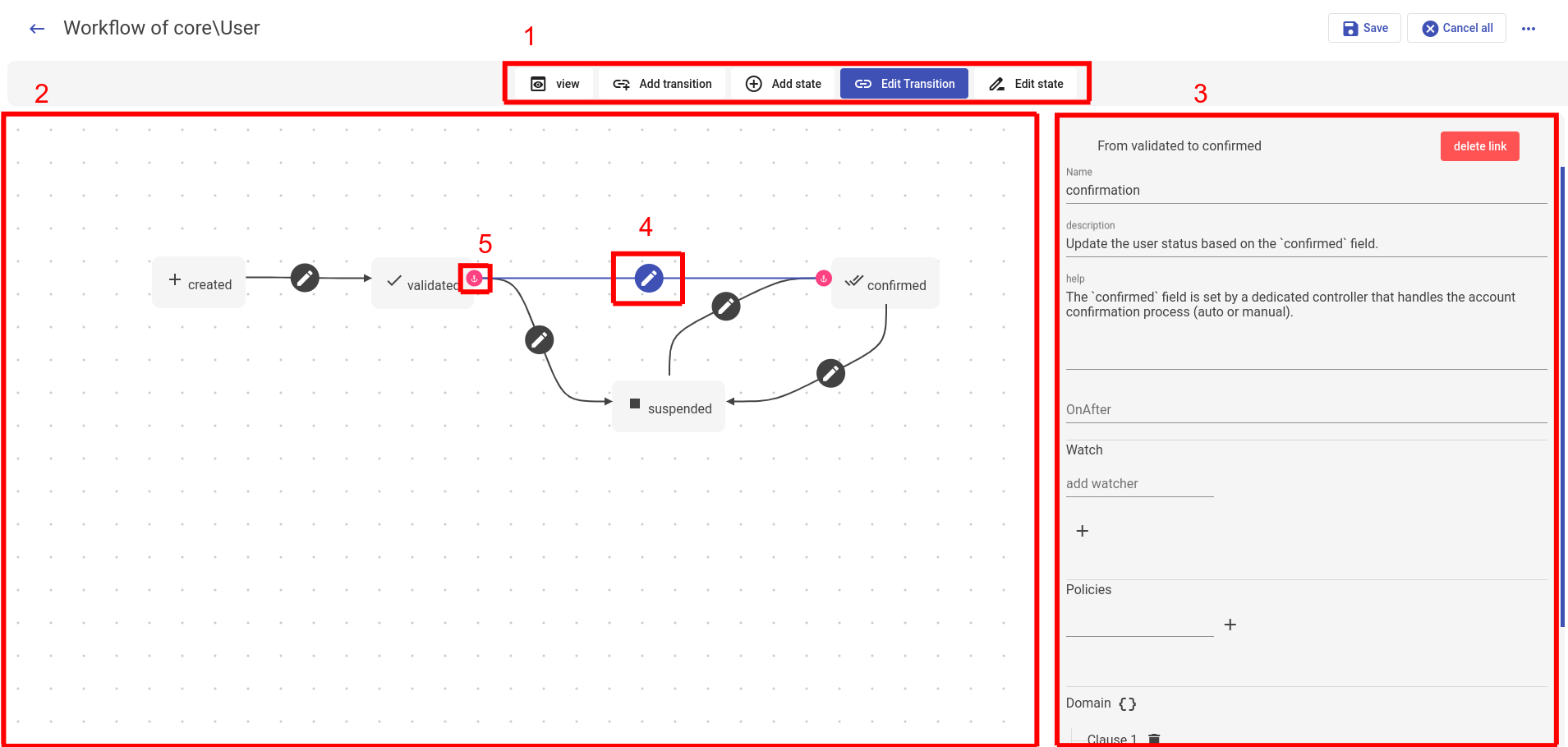
To create or edit a workflow, you can use the different modes (1) of the editor.
When in view or edit state, you can move the states of the workflow to adjust the visualization (2) by drag and dropping the state.
If you want to edit properties of states or transition select the appropriate mode and click on the edit button (4) of the item you want to edit, then use the contextual menu (3) on the right to alter the element.
When in create or edit transition mode, you can use the anchors (5) to move the start and the end of the transitions to adjust both the workflow and its visualization.
On save, the workflow will be converted to php associative array in the Model php file and the layout you created in core\Meta to be reused next time you want to visualize or edit the workflow.
UML Viewer/Editor
Workbench has a UML Viewer/Editor that you can access by the side menu :
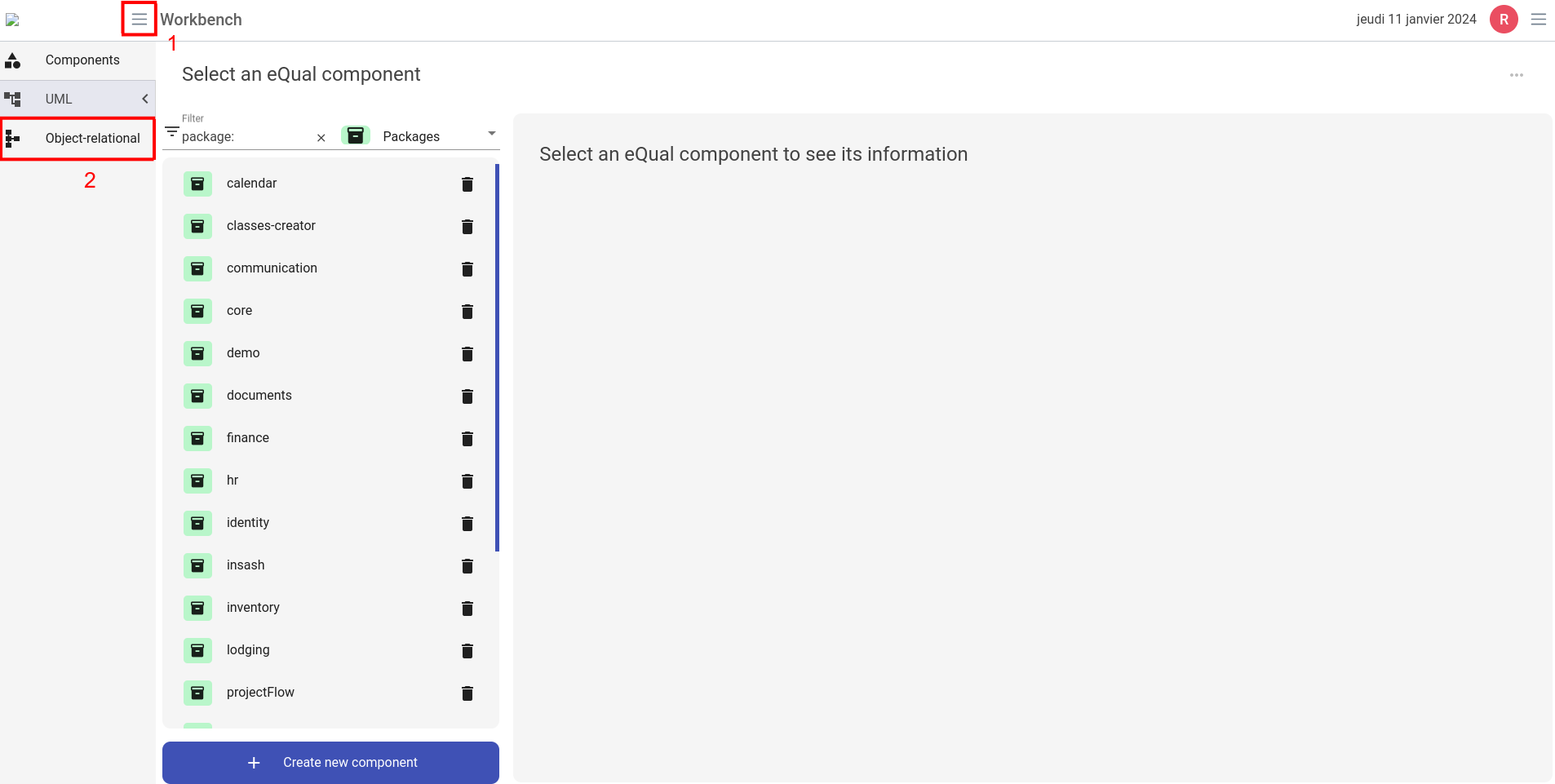
The UML editor uses information contained in the models' structure to create automatically a diagram
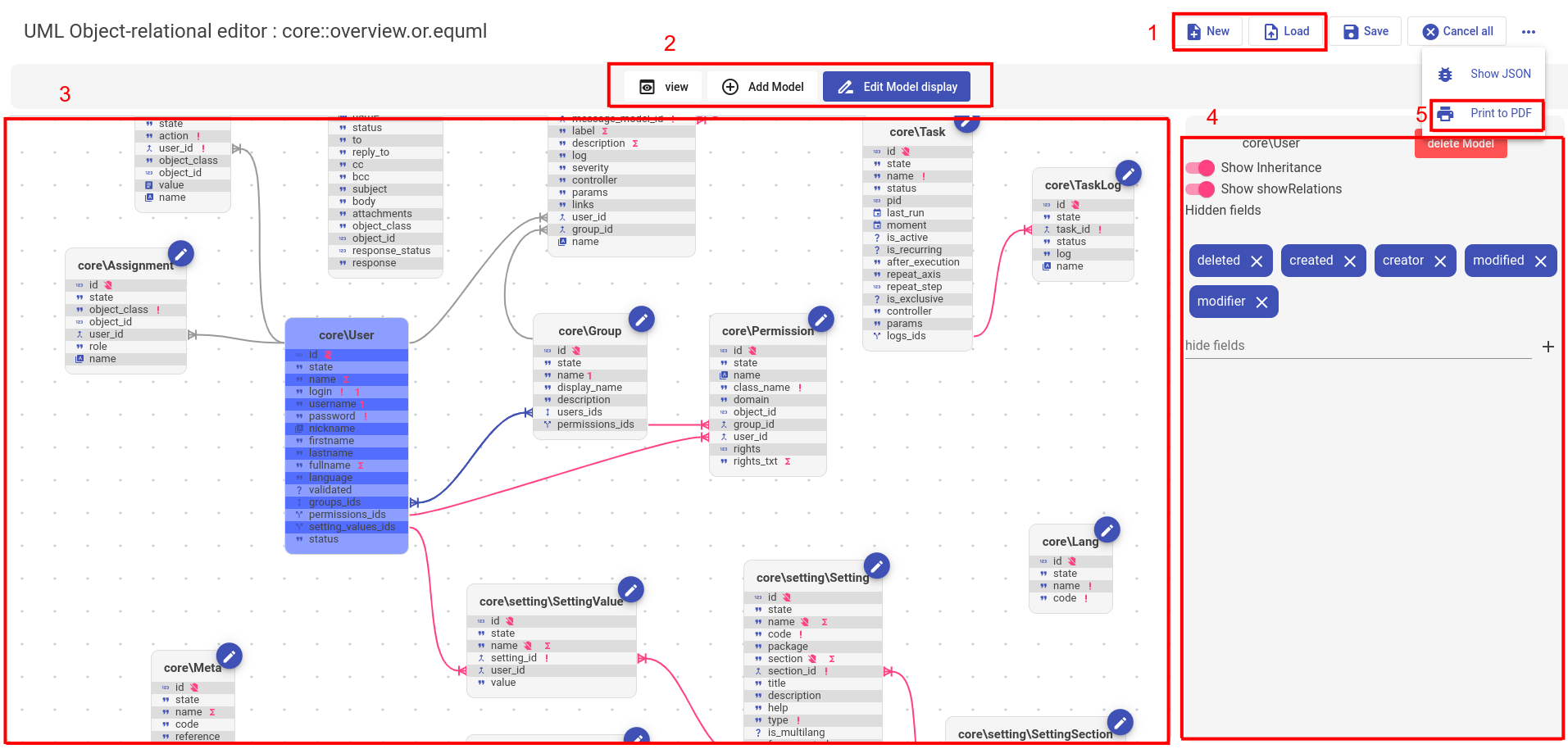
The UML editor is similar to the workflow editor in is internal working. you can switch between 3 modes (2) to create your workflows.
You can load and save UML diagrams located in the folder /uml of the packages of your eQUal instance using header buttons (1).
You can move by dragging the models in the visual representation (3) to adjust the graph
When editing a model (4) you can disable the inheritance links and relations link from this model. You can also hide fields to make the UML more readable.
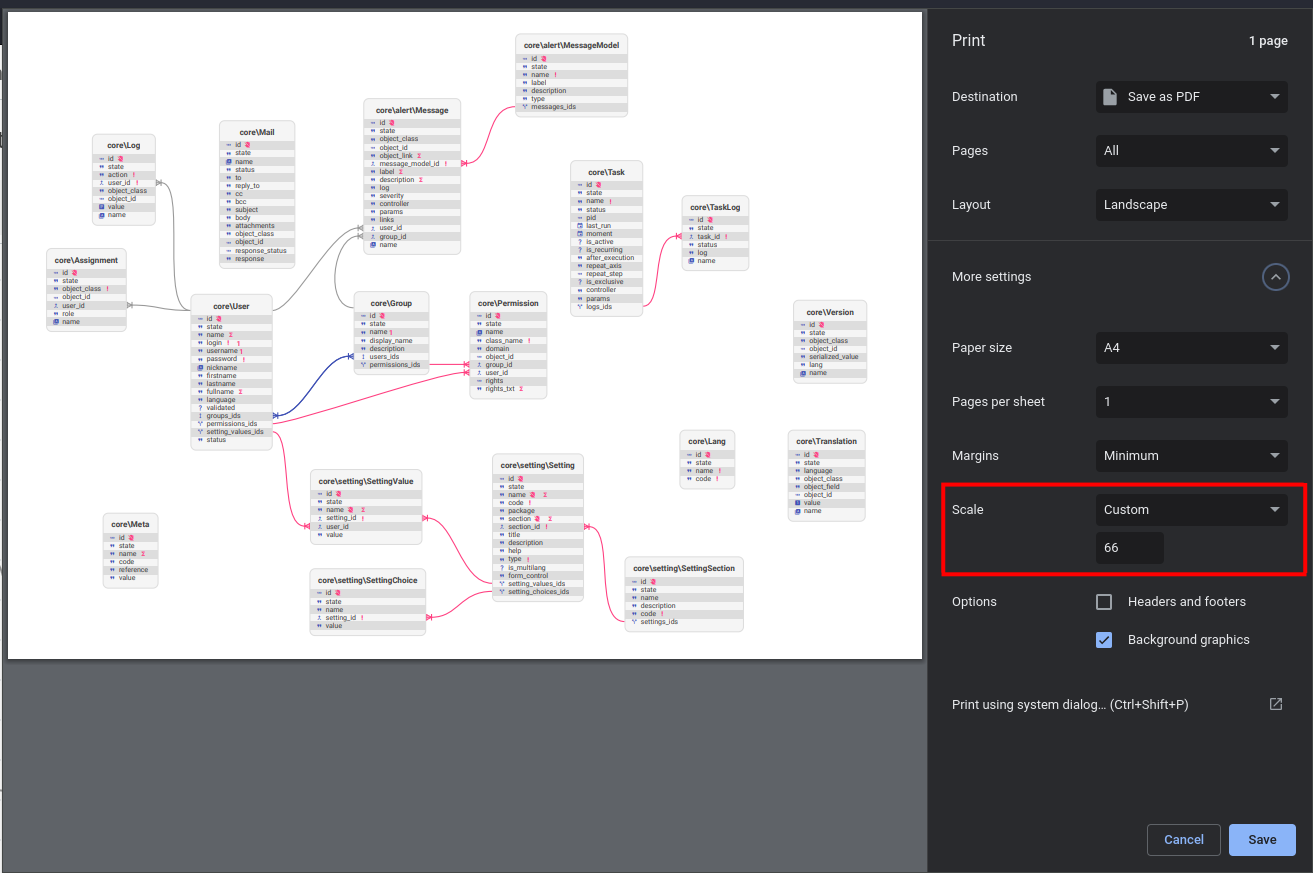
This page handles printing. you can render your UML as PDF (5) using the button or by pressing CTRL+P. Make sure that the camera is in the top left corner of the diagram and edit the scale of the print to fit everything in the page.
Adding a model is as simple as adding his name in the model list. The relations will add themselves.
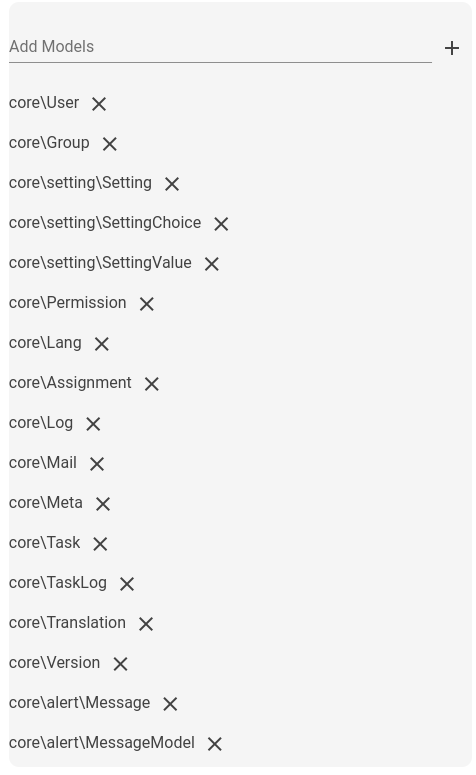
To delete a model from the representation, you can use the list of model, or select the model in the edition mode and press the delete button.
Route Side Menu
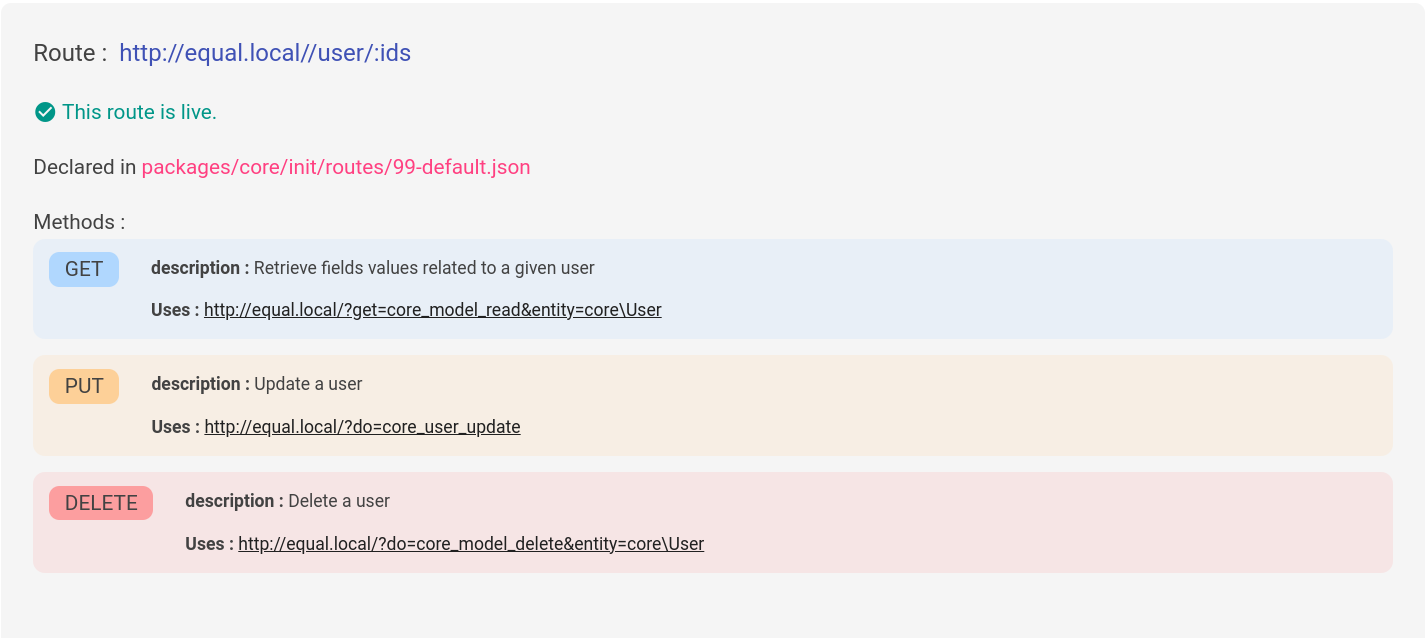
Route edition is not currently supported by Workbench but you can view them in the main menu and they have a side menu :
Pipeline Editor
The Pipeline Editor, part of the Workbench App, allows developers to build pipelines using a graphical interface. This eliminates the need for writing boilerplate code manually, simplifies development, and enhances accuracy.
What is a Pipeline?
A pipeline is a sequence of connected operations used to process and transform data step by step. Each operation is represented by a Controller or Router.
Creating a Pipeline
- Open the Workbench and navigate to the Pipeline Editor.
- Drag and drop controllers and routers to create nodes.
- Define input parameters for each controller.
- Link the output of one node to the input of another.
- Save and test your pipeline.
Example Pipeline
"schema" => [
  "type" => "entity",
  "qty"  => "many",
  "entity" => "core\User"
]
This pipeline fetches multiple User entities and passes them to the next node.