Passkey Authentication
Passkey authentication enhances security and user convenience by allowing users to log in using cryptographic keys instead of passwords. This approach mitigates risks associated with password theft, such as phishing and brute-force attacks.
Passkeys rely on the Web Authentication (WebAuthn) standard and can be securely stored on devices (software authenticators) or external hardware tokens (hardware authenticators). They integrate seamlessly with Multi-Factor Authentication (MFA).
Configuration
Prerequisites
- HTTPS: Passkey authentication deals with sensitive cryptographic data and requires a secure context (HTTPS).
- Exception:
localhostis permitted by browsers via HTTP for development purposes.
- Exception:
- Settings: The feature is disabled by default. You must enable
core.security.passkey_creationin your configuration to activate it.
Settings Reference
The following settings configure the behavior of the passkey registration and authentication processes.
- Propose passkey creation: Toggles the prompt offering users the ability to create a passkey after a successful password login.
- Relying Party ID (RP ID): The domain name acting as the unique identifier for the application (e.g.,
localhostormy-app.org). - Relying Party Name: A user-friendly name displayed to the user during the browser prompt (e.g., "MyApp" or "SecureBank").
- Passkey Format Enable: Controls which Attestation formats are supported (e.g.,
android-key,apple,fido-u2f,packed,tpm). - User Verification: Determines if the authenticator must verify the user (e.g., via PIN or biometrics).
required: Verification is mandatory.preferred: Verification is requested but not blocked if unavailable.discouraged: User verification is skipped.
- Cross-Platform: Controls support for roaming authenticators vs platform authenticators.
all: Allows both platform-specific and cross-platform devices.cross-platform: Prioritizes external keys (e.g., USB security keys).platform: Restricts usage to the current device (e.g., Touch ID).
Workflows
Sign-In Overview
The sign-in process adapts dynamically based on whether the user has a registered passkey.
- Identification: The user enters their login (email or username).
- Detection: The system checks if the user has any registered passkeys.
- Existing Passkey: The system proposes passkey authentication as the primary method.
- No Passkey: The system requests the password.
- Completion: Upon successful validation, the user is authenticated. If they authenticated with a password and passkeys are enabled, they may be prompted to register one for future use.
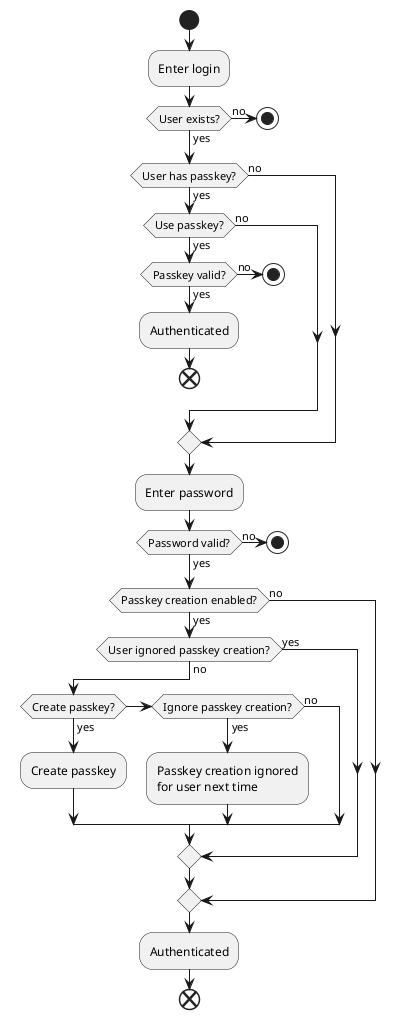
Registration Workflow (User without a passkey)
If a user identifies themselves, authenticates with a password, and has not yet set up a passkey:
- Prompt: The system suggests creating a passkey.
- Action:
- Register: The backend generates a challenge. The user's device signs it, and the credential is stored.
- Ignore: The user skips registration for this session.
- Ignore Permanently: The user opts out, and the system will not prompt them again.
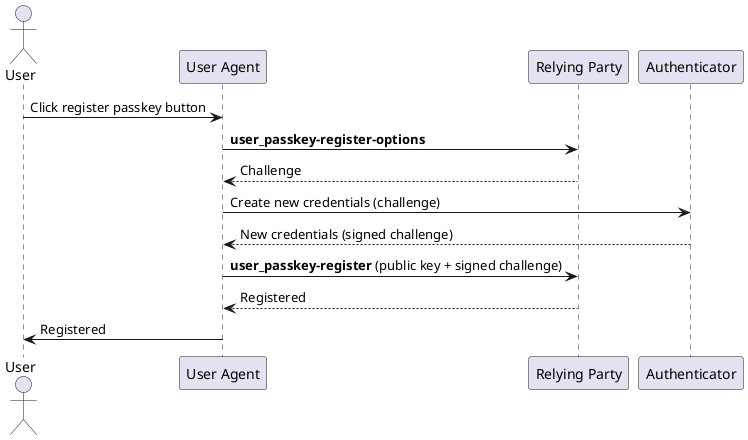
This logic corresponds to the controller user_passkey-register-options, which provides the challenge, followed by the action user_passkey-register to verify and store the credential.
Authentication Workflow (User with a passkey)
If the user identifies themselves and has a registered passkey:
- Prompt: The system automatically offers passkey authentication.
- Action:
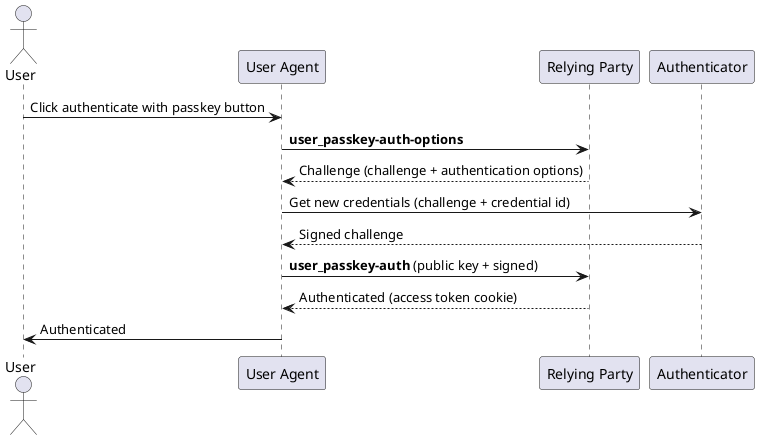
- Use Passkey: The backend generates an authentication challenge (
user_passkey-auth-options). The device signs it. The backend verifies the signature (user_passkey-auth) and issues an Access Token. - Switch to Password: The user can choose to fallback to password authentication (e.g., if the specific device containing the passkey is unavailable).
- Use Passkey: The backend generates an authentication challenge (
Architecture & Controllers
The Passkey implementation involves specific Controllers in the core auth package acting as the Relying Party.
Data Controllers (GET)
user_passkey-register-options: Prepares the data required for the browser's credential creation API.- Returns: Challenge, User Handle, RP details, supported capabilities (formats, verification).
user_passkey-auth-options: Prepares the data required for the browser's credential request API.- Returns: List of allowed Credential IDs for the user, Challenge.
Action Controllers (POST)
user_passkey-register: Finalizes the credential creation.- Logic: Verifies that the challenge is correctly signed by the authenticator and stores the public key and credential ID.
user_passkey-auth: Performs the login.- Logic: Verifies the challenge signature against the stored public key for the selected credential. Returns an authentication cookie on success.
Authenticators and Assurance Levels
Different authenticators provide different levels of security assurance. eQual maps these formats to Authentication Assurance Levels (AALs) as follows:
| Format | Description | Level | Justification |
|---|---|---|---|
android-key |
Android hardware-backed key (TrustZone). | AAL⅔ | Considered AAL3 if secure enclave is verified; otherwise AAL2. |
android-safetynet |
Software-based validation on Android. | AAL2 | Provides reasonable guarantees without requiring dedicated secure hardware. |
apple |
Apple Secure Enclave (Touch ID/Face ID). | AAL⅔ | AAL3 when biometric verification is used; AAL2 otherwise. |
fido-u2f |
Dedicated hardware keys (e.g., YubiKey). | AAL3 | Meets AAL3 requirements with phishing-resistant hardware. |
tpm |
Trusted Platform Module (TPM). | AAL3 | ensures hardware-based resistance to key cloning. |
none |
No attestation or unknown origin. | AAL1 | Minimal guarantees on the authentication method. |
Common Passkey Managers supported include Apple (iCloud Keychain), Bitwarden, Google Account, and Microsoft Hello.